
Download Importing
Tauon can monitor your downloads folder and make it easy to import new music with just one click.

How It Works
Section titled “How It Works”When a new music archive or folder is detected in your downloads folder, a button appears that lets you immediately import that item.
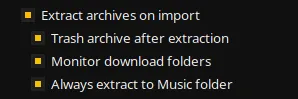
To enable this feature, go to MENU > Settings… > Functions and enable:
- “Monitor download folders” - Watches for new files
- “Extract archives on import” - Automatically extracts compressed files
Optional settings:
- “Trash archive after extraction” - Removes the archive after extracting
- “Always extract to music folder” - Extracts to your music library folder
Supported Formats
Section titled “Supported Formats”- Folders - Drag and drop or auto-detect
- ZIP archives - Automatically extracted
- 7z archives - Requires additional setup (see below)
- RAR archives - Requires additional setup (see below)
Downloads Playlist
Section titled “Downloads Playlist”Items will be imported to the playlist you’ve flagged as the downloads playlist. To set this:
- Right click a playlist tab
- Select “Misc…” > “Set as Downloads Playlist”
If no downloads playlist is set, items will be imported to the currently viewed playlist.
Advanced Archive Support
Section titled “Advanced Archive Support”7z and RAR Support
Section titled “7z and RAR Support”To use 7z and RAR archives, you need to install additional packages:
AUR:
# Install optional packagessudo pacman -S unrar p7zipFlatpak:
# Install host packagessudo apt install unrar p7zip-full  # Ubuntu/Debian# orsudo dnf install unrar p7zip        # Fedora
# Grant permission to run commands in host environmentsudo flatpak override com.github.taiko2k.tauonmb --talk-name=org.freedesktop.Flatpak
Snap: These packages are included by default.
- Keep your downloads folder organized for best results
- The feature works great with music downloads from Bandcamp, etc.
- You can disable auto-trash of archives if you want to keep backups