
Interface Overview
This guide covers all the major interface elements in Tauon Music Box.
The Top Panel
Section titled “The Top Panel”
The top panel contains the playlist tabs. Click a playlist tab to switch the tracklist view to that playlist. You can also mouse wheel scroll to cycle through them.
Managing Playlists
Section titled “Managing Playlists”- Create new playlist - Click MENU, then “New Playlist”
- Delete playlist - Middle mouse click on the tab
- Add tracks to playlist - Drag tracks from the tracklist and drop them onto a playlist tab
- Create new playlist from tracks - Drag and drop tracks to the right of all the playlist tabs
- Re-arrange tabs - Drag tabs to re-order them
- Merge playlists - Hold
Shiftwhile dragging a tab onto another - Duplicate playlist - Hold
Ctrlwhile dragging to the right of all tabs
The Bottom Panel
Section titled “The Bottom Panel”
| Control | Description |
|---|---|
| Play button | Start playback (Right click to locate the playing track) |
| Pause button | Pause playback |
| Stop button | Stop playback (Right click to activate auto-stop) |
| Previous button | Previous track (Right click toggles repeat) |
| Next button | Next track (Right click toggles shuffle) |
| Playback time indicator | Click to cycle display modes |
| Volume bar | Adjust volume (Right click to mute) |
| Shuffle toggle | Enable shuffle mode (Right click for menu) |
| Repeat toggle | Enable repeat mode (Right click for menu) |
Seek Bar
Section titled “Seek Bar”The seek bar runs along the top of the bottom panel. You can:
- Click to jump to a position
- Middle mouse click to bring up a time cursor
The Right Side Panel
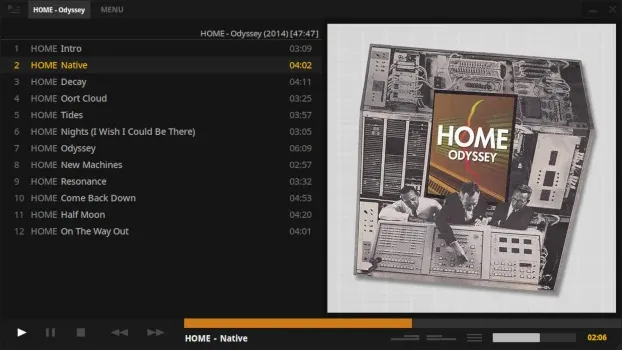
Section titled “The Right Side Panel”The right side panel displays album information and can be resized by dragging the left edge.
Album Art Display
Section titled “Album Art Display”The top half shows the album art.
- Click the album art to cycle through any available images
- Hold
Shiftwhile hovering to see the image resolution
Track Metadata
Section titled “Track Metadata”The bottom half displays track metadata including:
- Track title
- Artist
- Album
- Additional tags
Lyrics View
Section titled “Lyrics View”Right click the metadata area to access the lyrics menu. When “Show lyrics” is enabled, the panel will automatically switch to lyrics layout when lyrics are available.
Layout Options
Section titled “Layout Options”- Resize - Drag the left edge to resize the panel
- Large art mode - Resize the panel toward the left for a large album art layout
- Centered style - Middle mouse click in the side panel to toggle an alternate centered layout
The Left Side Panel
Section titled “The Left Side Panel”Toggle the left side panel by clicking the top-left corner button. Right click the toggle button to switch between different views.
Available Views
Section titled “Available Views”- Playlists + Queue - Lists all playlists
- Artist List - Browse by artist
- Folder Navigator - Navigate your folder structure
Playlists + Queue
Section titled “Playlists + Queue”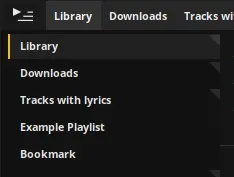
Lists all of your playlists. These behave similar to the top panel tabs.
You can unpin a playlist from the top panel using the tab’s right click context menu. Keep tabs pinned when you want quick access to them.
Folder Navigator
Section titled “Folder Navigator”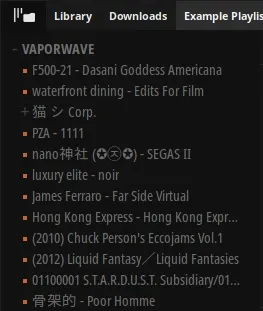
Lists folders in the current playlist in a tree-style layout.
- Double click a folder to play it
- Single click to locate that folder in the playlist
The Main Tracklist
Section titled “The Main Tracklist”The tracklist is where all your tracks are displayed.
Selecting Tracks
Section titled “Selecting Tracks”- Single track - Click on it
- Album block - Click the album title in the tracklist
- Range - Click the first track, hold
Shift, click the last track
Re-arranging Tracks
Section titled “Re-arranging Tracks”- Move/add tracks by drag and drop or copy and paste
- Moving a single track requires holding
Shiftwhen dragging
Scrolling
Section titled “Scrolling”- Use the mouse wheel to scroll
- A scroll-bar appears on the left when you mouse over
- Hold mouse button above/below the grip to scroll quickly
- Right click to jump to an absolute position