
Overview
Tauon is a playlist oriented music player that makes the general assumption that folders are albums. You may find the words “album” and “folder” used interchangeably within the interface and documentation.
While some features and interface elements may not be immediately intuitive, once you are familiar with them, you will find that Tauon is pleasant, fast and fun to use!
First Launch
Section titled “First Launch”When you launch Tauon for the first time you will be greeted with the main window:
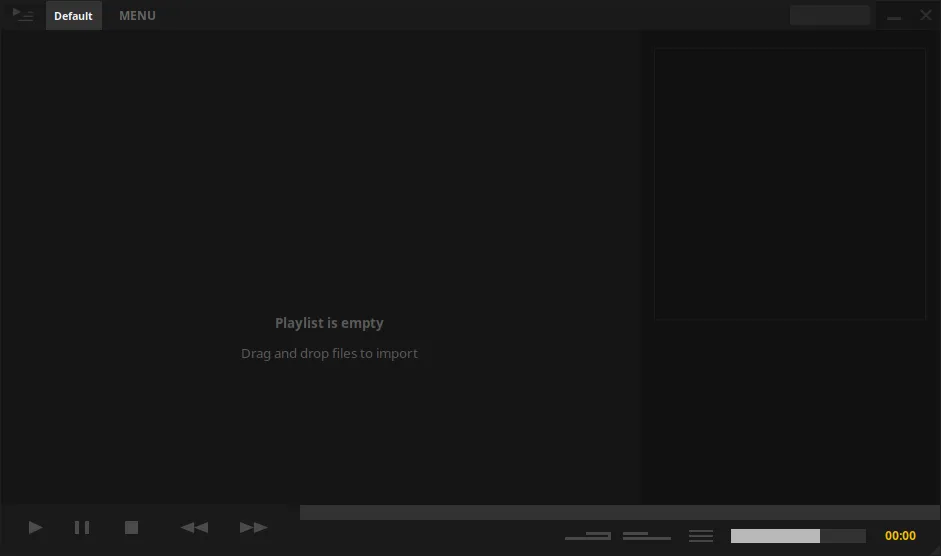
The interface is divided into several key areas:
| Area | Description |
|---|---|
| Main tracklist | Where your tracks appear |
| Top panel | Playlist tabs |
| Bottom panel | Playback controls |
| Right side panel | Album art and metadata |
| Left side panel | Additional views (toggle from top-left corner) |
Importing Your Music
Section titled “Importing Your Music”To import tracks, simply drag and drop files or folders from your file manager into the main tracklist area.
Once you have tracks imported, just double click them to play.
Updating Your Library
Section titled “Updating Your Library”Tauon has no background file monitoring. To update, simply clear the playlist and re-import.
Alternatively, you can trigger a rescan of all top level folders you’ve previously added by selecting “Rescan Folders” from the playlist tab context menu.
Playing Music
Section titled “Playing Music”- Double click a track to play it
- Use the playback controls in the bottom panel
- Right click the play button to go to playing - this will locate the currently playing track in the tracklist
Quick Keyboard Shortcuts
Section titled “Quick Keyboard Shortcuts”Here are some essential shortcuts to get you started:
| Shortcut | Action |
|---|---|
Space | Play/pause |
- / + | Seek backward/forward |
Left / Right | Cycle playlists |
Shift + Left / Right | Previous/next track |
" | Show playing track |
, / . | Toggle repeat / shuffle |
Ctrl + F | Find in playlist |
| Start typing | Global search |
For a complete list of shortcuts, see the Keyboard Shortcuts reference.