
Download Importing
Tauon can monitor your downloads folder and make it easy to import new music with just one click.

How It Works
Section titled “How It Works”When a new music archive or folder is detected in your downloads folder, a button appears that lets you immediately import that item.
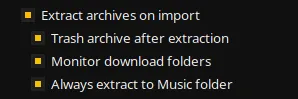
To enable this feature, go to MENU > Settings… > Functions and enable:
- “Monitor download folders” - Watches for new files
- “Extract archives on import” - Automatically extracts compressed files
Optional settings:
- “Trash archive after extraction” - Removes the archive after extracting
- “Always extract to music folder” - Extracts to your music library folder
Default Import Playlist
Section titled “Default Import Playlist”Items will be imported to the playlist you’ve flagged as the downloads playlist. To set this:
- Right click a playlist tab
- Select “Misc…” > “Set as Downloads Playlist”
If no downloads playlist is set, items will be imported to the currently viewed playlist.
Supported Formats
Section titled “Supported Formats”- Folders - Drag and drop or auto-detect
- ZIP archives - Automatically extracted
- 7z archives - Requires additional setup (see below)
- RAR archives - Requires additional setup (see below)
7z and RAR Support
Section titled “7z and RAR Support”To use 7z and RAR archives, you need to install additional packages:
Arch Linux
# Install optional packagessudo pacman -S unrar p7zipFlatpak
# Install host packagessudo apt install unrar p7zip-full  # Ubuntu/Debian# orsudo dnf install unrar p7zip        # Fedora
# Grant permission to run commands in host environmentsudo flatpak override com.github.taiko2k.tauonmb --talk-name=org.freedesktop.Flatpak- Keep your downloads folder organized for best results
- The feature works great with music downloads from Bandcamp, etc.
- You can disable auto-trash of archives if you want to keep backups