

Main Window
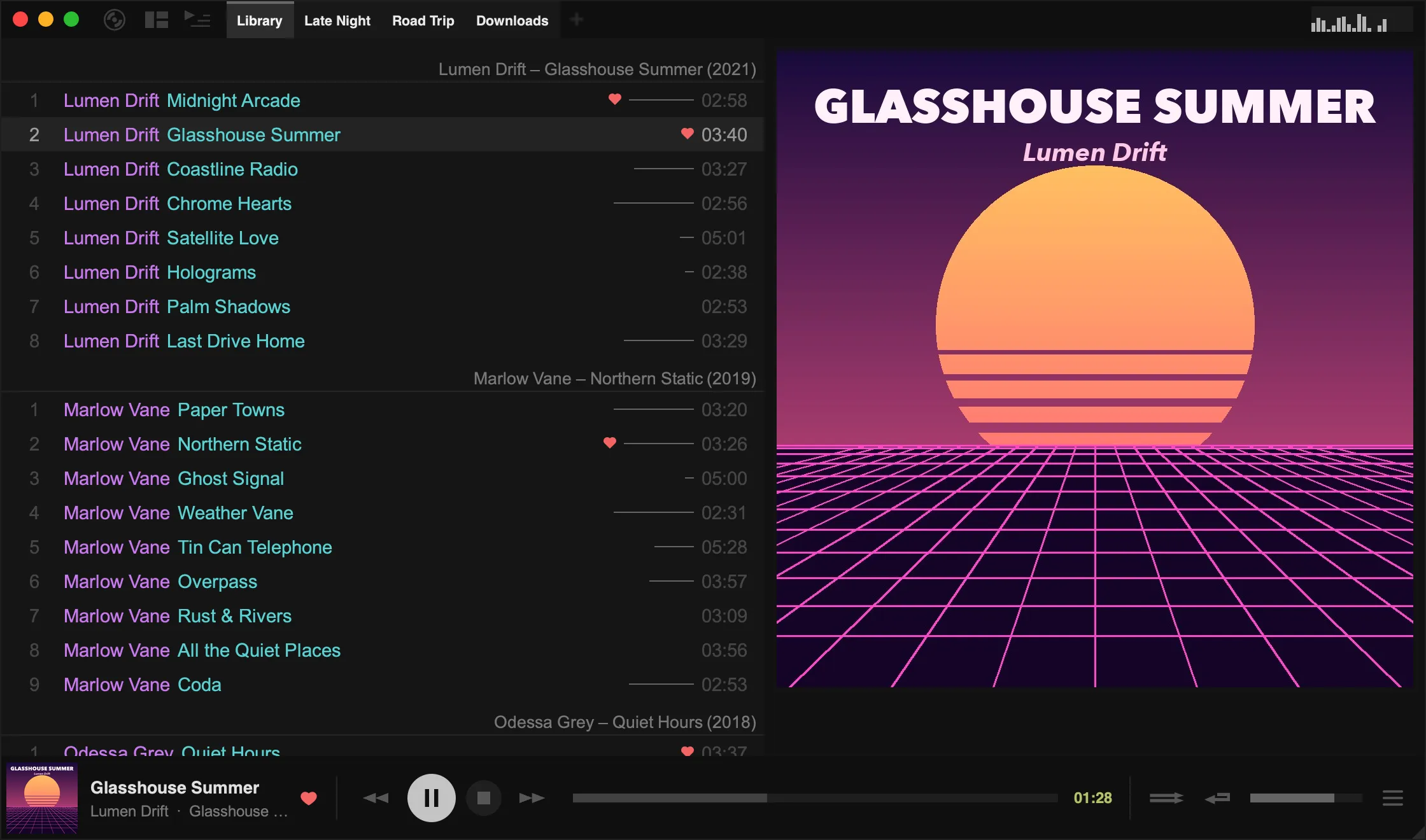
The top panel
Section titled “The top panel”
The three buttons in the top-left corner are:
| Button | Click | Right-click |
|---|---|---|
| Main menu (record icon) | Opens the main menu: new playlists, Settings, the Database… tools and more | Same as click |
| Layout | Opens the layout menu to switch between views | — |
| Side panel | Shows or hides the left panel | Chooses what the left panel shows |
Middle-clicking the side-panel button switches back to the left panel view you used before.
Right-clicking empty space in the top panel opens a small menu where you can hide the playlist tabs and turn on a Level Meter or Spectrum Visualizer at the top right.
Playlist tabs
Section titled “Playlist tabs”Click a tab to view that playlist. You can also scroll the mouse wheel over the tabs to move between them.
- New playlist: choose New Playlist from the main menu, press
Ctrl+T, or click the + after the last tab. - Play: double-click the tab to start playing the selected track in that playlist.
- Rename: right-click the tab and choose Rename, or press
F2. - Delete: middle-click the tab, or right-click it and choose Delete. Press
Ctrl+Zto undo. - Add tracks: drag tracks from the tracklist onto a tab.
- New playlist from tracks: drag tracks to the empty space after the last tab.
- Reorder: drag tabs left and right.
- Merge: hold
Shiftwhile dragging a tab onto another. - Duplicate: hold
Ctrlwhile dragging a tab to the empty space after the last tab.
Right-click a tab for more options, such as sorting, smart playlist presets, and export. To keep a playlist out of the top panel, choose Unpin. It stays available in the left panel’s playlist list. To group playlists, see Playlist Folders.
The bottom panel
Section titled “The bottom panel”
From left to right:
- Now playing: the album art, title, artist and album of the current track. The heart loves the track.
- Playback buttons: back, play/pause, stop and forward.
- Seek bar: click or drag to jump to a position. Middle-click it to show a time cursor.
- Shuffle and repeat toggles. Right-click them for more modes (see below).
- Volume: drag, or scroll the mouse wheel over the panel.
- Playback menu (☰): Audio Info, mini modes, random track, playback speed and other quick actions.
Right-click empty space in the bottom panel to choose a mini mode, switch to the more compact classic panel, or copy the playing track’s title.
Shuffle and repeat modes
Section titled “Shuffle and repeat modes”Right-click the shuffle button for:
- Shuffle Tracks and Random Albums
- Shuffle Lockdown: a distraction-free view that plays your playlist in shuffle with the playback controls hidden. Press
Escor choose Exit Shuffle Lockdown from the main menu to leave.
Right-click the repeat button for:
- Repeat Track and Repeat Album
- A/B Repeat: select it once to set the start point, again to set the end point, and a third time to clear. The section between the markers loops.
Right-click the stop button to stop after the current track or album, either once or every time.
The side panel
Section titled “The side panel”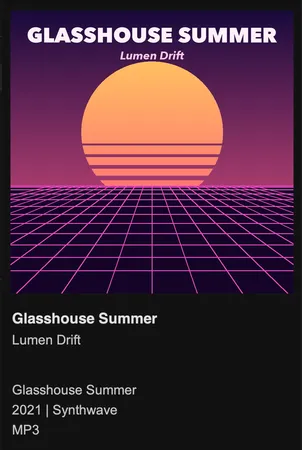
The side panel on the right shows the playing track’s album art and details. Drag its left edge to resize it. When it’s wide enough, the art fills the panel, as in the screenshot at the top of this page.
- Click the art to cycle through other images in the album’s folder.
- Right-click the art for image tools (open, extract, fetch cover art), lyrics, the centered style, Zoom Art to Fit, and the MilkDrop visualiser.
- Right-click the track details for lyrics options.
- Hold
Shiftwhile dragging the edge to make the panel wider than the art is tall.
The left panel
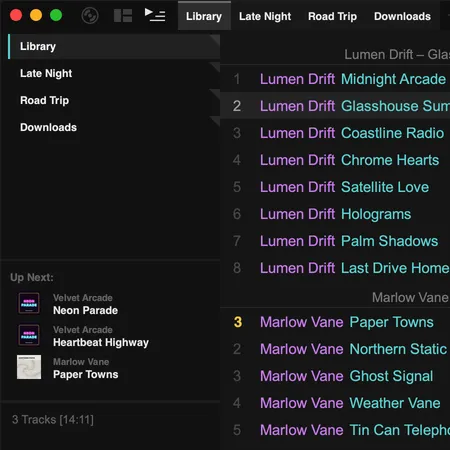
Section titled “The left panel”Click the side-panel button in the top-left corner to show the left panel. Right-click the button to choose what it shows:
- Playlists + Queue: your playlists and folders, with the queue below
- Queue: only the queue
- Artist List: the artists in the current playlist
- Folder Navigator: the current playlist’s folders as a tree
The tracklist
Section titled “The tracklist”The tracklist shows the playlist you’re viewing, grouped into albums under a heading.
Selecting tracks
Section titled “Selecting tracks”- One track: click it.
- A whole album: click the album heading.
- A range: click the first track, then
Shift-click the last. - Everything: press
Ctrl+A.
Moving and copying tracks
Section titled “Moving and copying tracks”- Drag selected tracks to move them, or onto a playlist tab to add them there.
- To move a single track within an album, hold
Shiftwhile dragging it. - Copy, cut and paste with
Ctrl+C,Ctrl+XandCtrl+V. Pasting with the keyboard adds tracks to the end of the playlist. Paste in the right-click menu adds them after the album you clicked. - Press
Deleteto remove the selection from the playlist. This doesn’t delete any files.
Customising the tracklist
Section titled “Customising the tracklist”Right-click a track and open the Layout submenu to change the tracklist’s look: show or hide loves, ratings and playcount lines, change the font size and row height, or switch on columns.
Scrolling
Section titled “Scrolling”Scroll with the mouse wheel or trackpad. A scroll bar appears when you hover near the right edge of the tracklist:
- Drag the grip, or hold the mouse button above or below it to scroll quickly.
- Right-click the scroll bar to jump straight to that position.