

Tag Editor
Tauon’s tag editor reads and writes the tags stored in your audio files. You can edit one track or many at once, edit embedded artwork, and look up correct tags from MusicBrainz.
Open the editor
Section titled “Open the editor”Select one or more tracks, right-click, and choose Edit Tags…. You can also right-click an album heading to edit the whole album.
The editor works with local files in the MP3, FLAC, Ogg, Opus, WavPack, APE and M4A formats. Tracks from network servers and tracks inside CUE sheets can’t be edited.
Edit tags
Section titled “Edit tags”- Change any of the fields. Edited fields get a green outline.
- Click Write tags to save your changes to the files.
Nothing is written until you click Write tags. To undo a change before then, click the arrow next to the field. To throw away everything, click Discard (the Close button changes to this while you have unsaved changes) or press Esc.
After writing, Tauon rescans the files and updates its library. Your play counts, loves and ratings are kept.
The Main tab
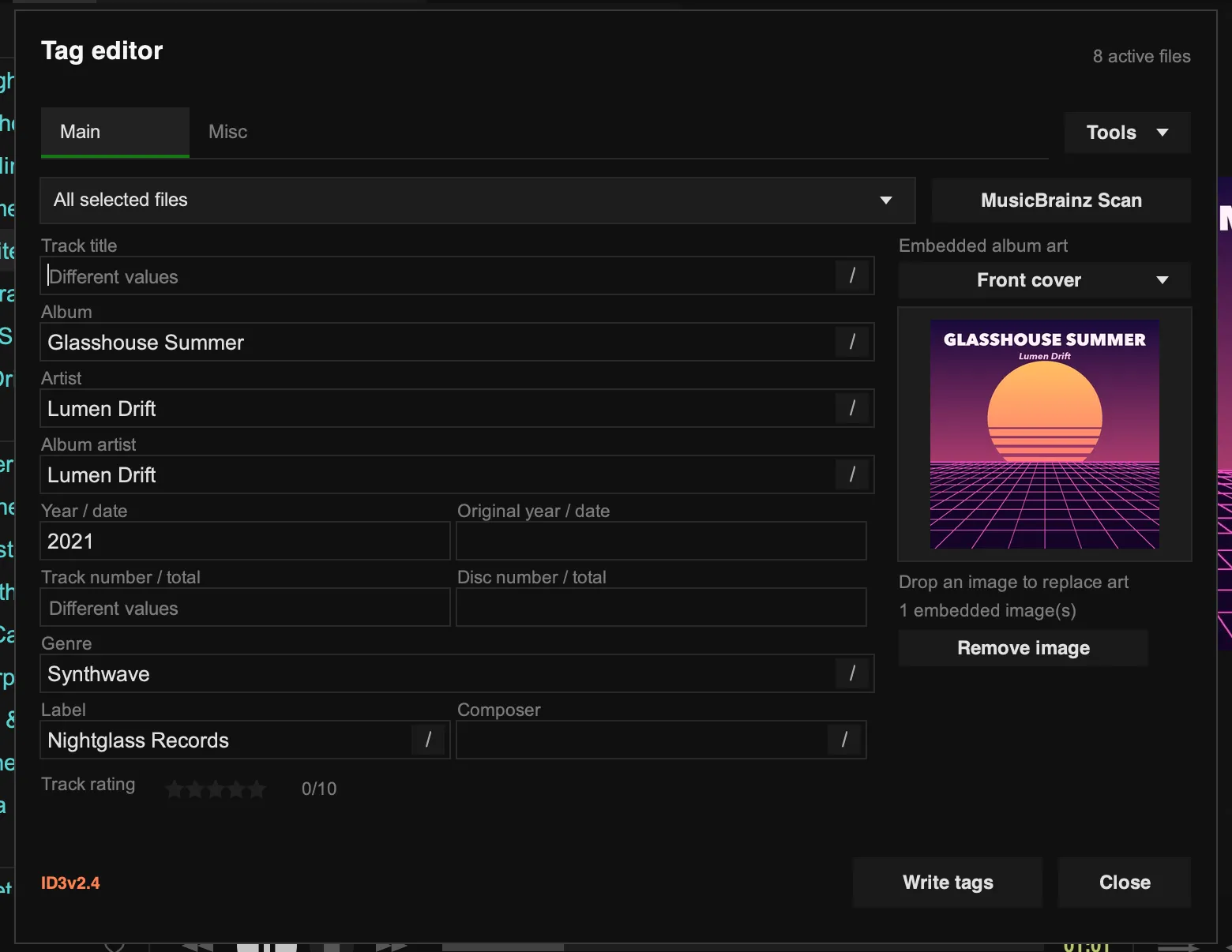
Section titled “The Main tab”Main has the common fields: title, album, artist, album artist, dates, track and disc numbers, genre, label, composer, your star rating, and the embedded artwork.
When you edit several tracks at once, a field that differs between tracks shows that it has mixed values. Leave it alone to keep each track’s own value, or type a new value to set it on all of them.
Use the dropdown at the top to switch between All selected files and a single file. Your edits are kept as you switch, and Write tags saves every file with changes.
Fields like artist and genre can hold several values. Click the / button at the end of the field to add a separator between values.
The Misc tab
Section titled “The Misc tab”Misc lists every tag in the file, under the file format’s own name for it. Select a row to edit it. Use Add key to add any tag, or Presets for common ones such as comment, BPM, ISRC, unsynced or synced lyrics, credits and sort order.
Artwork
Section titled “Artwork”Drop an image onto the artwork area to embed it. The artwork dropdown chooses which picture to change, such as Front cover or Back cover. Remove image removes just that picture.
MusicBrainz Scan
Section titled “MusicBrainz Scan”MusicBrainz Scan identifies your tracks by how they sound, using AcoustID audio fingerprints, and then finds matching album releases on MusicBrainz.
- Select the tracks of an album and open the editor.
- Click MusicBrainz Scan. Tauon fingerprints each file and looks up the results.
- Choose the best match from the album editions listed. A table shows the proposed changes for each track.
- Click Use this album to fill in the tags.
- Check the result and click Write tags.
Fingerprints and track lengths are sent to AcoustID and MusicBrainz. Your audio files are not uploaded.
Tools menu
Section titled “Tools menu”- Upgrade ID3 tags to v2.4 converts older MP3 tags to ID3v2.4, which properly supports multiple values and full dates. Some older devices only read ID3v2.3, so this is never done automatically.
- Fix Mojibake repairs garbled text caused by tags saved in the wrong text encoding, for example Japanese text that displays as random accented characters. Check the result before writing.
- Automatically split slashes treats
/typed between words as a separator between values.AC/DCwithout spaces stays as one value.