

Smart Playlists
A smart playlist fills itself from your other playlists by following a few steps you choose. For example: every synth album from the last few years, shuffled.
Create one
Section titled “Create one”Press Ctrl + Shift + E, or right-click a playlist tab and choose Smart Playlist…. To start from a ready-made playlist, such as Unplayed, Recently added or One-hour mix, open Presets.
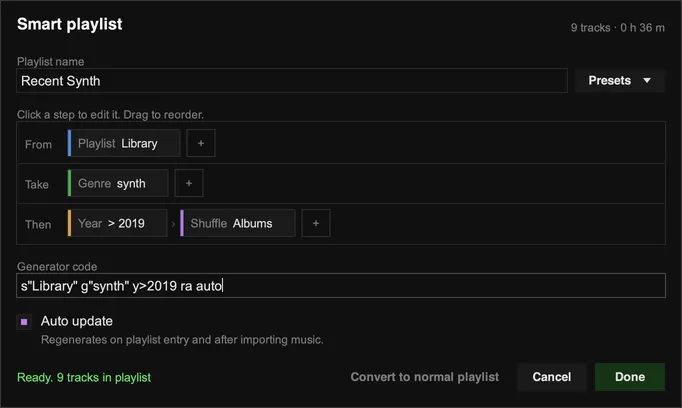
Build it from steps
Section titled “Build it from steps”The editor has three rows, and the steps run from left to right:
| Row | What it does |
|---|---|
| From | Which playlists to use. Leave it empty to use all of them. |
| Take | Which tracks to take: all tracks, or an artist, genre, search, folder and so on. You need at least one. |
| Then | What to do with them: filter by year, rating or play count, sort or shuffle, and limit the number of tracks. |
Use + on a row to add a step. Click a step to change it, and drag steps to reorder them.
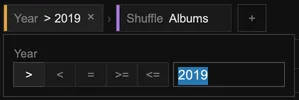
The playlist updates as you go. The line at the bottom shows how many tracks match, or what needs fixing.
Keep it up to date
Section titled “Keep it up to date”- Tick Auto update to regenerate the playlist when you open it and after importing music.
- Without it, the playlist follows Settings › Library › Playlists › Auto reload playlists. Shuffled playlists only update automatically when Auto update is ticked.
- To update it yourself, right-click its tab and choose Regenerate (
Alt+R).
If you rename a playlist that a smart playlist draws from, the smart playlist is updated to match.
To turn a smart playlist back into a normal one, open the editor and choose Convert to normal playlist. It keeps its current tracks.
Other ways to make one
Section titled “Other ways to make one”- Right-click a tab and choose Derive… to make a smart playlist from that playlist, such as Top Played Tracks, Shuffled Albums or Has Lyrics.
- Click an artist, genre or folder in global search, or press
Shift+Enterin quick find.
Generator codes
Section titled “Generator codes”Each step is saved as a short code, shown in the Generator code box. If you’d rather type codes yourself, see the generator code reference.