

Gallery View
The gallery shows the albums in the current playlist as a grid of cover art.
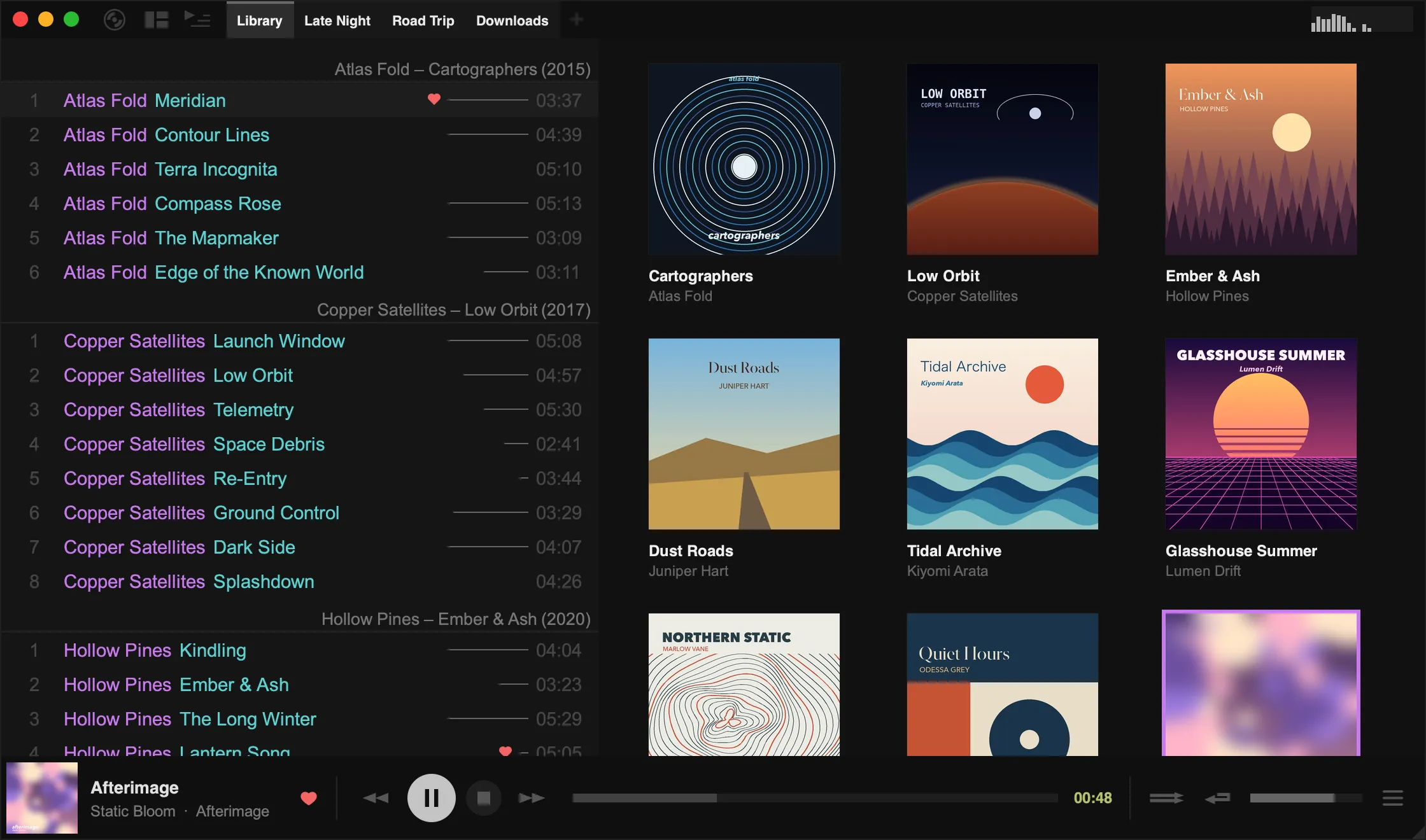
Open the gallery
Section titled “Open the gallery”- Click the layout button (the second button in the top-left corner) and choose Tracks + Gallery.
- Or press
]/[(or your mouse’s back and forward buttons) to cycle through layouts until you reach it. - Press
Tabto open the gallery in keyboard control mode (see below).
Drag the border between the tracklist and the gallery to resize the gallery.
Using the gallery
Section titled “Using the gallery”- Click an album to play it. To use double-click instead, turn off Single click to play (see below).
- Right-click an album to open its folder, show it in the playlist, change its cover image, add it to the queue, or transcode it.
- Right-click empty space in the gallery to change how it looks:
- Thumbnail size
- Show titles and Center title text
- Single click to play
- Scroll by row
- Combine multi-discs shows multi-disc albums as one cover
Keyboard control mode
Section titled “Keyboard control mode”Press Tab to open the gallery with keyboard control:
- Arrow keys move between albums
Enterplays the selected albumTabagain returns to where you were
If you’re already in the gallery layout, Tab switches keyboard control on and off.
Gallery widgets
Section titled “Gallery widgets”Custom layouts have more gallery styles: Gallery: Compact (a fixed number of albums per row) and Albumflow (a scrolling row of covers).