

Playlist Export & Import
Tauon can export playlists as XSPF (recommended) or M3U files, and import playlist files in both formats.
Export a playlist
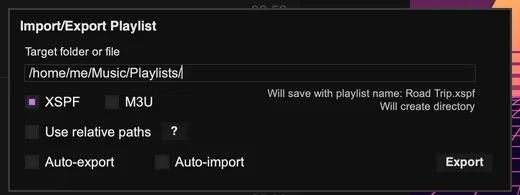
Section titled “Export a playlist”- Right-click the playlist tab and choose Import/Export….
- Enter a target folder or file name. Tauon shows below the box what will happen, for example the file name it will use.
- Choose XSPF and/or M3U, and whether to Use relative paths.
- Click Export.
Keep a playlist file in sync
Section titled “Keep a playlist file in sync”The same dialog has two options that link the playlist to its file:
- Auto-export writes the file again whenever Tauon saves, for example when you quit.
- Auto-import reloads the playlist from the file when Tauon starts. If Settings › Library › Playlists › Auto reload playlists is on, it also reloads when you switch to the playlist.
The default export folder is set in Settings › System › Input and export.
Import a playlist
Section titled “Import a playlist”Drag and drop an XSPF or M3U file onto the Tauon window. The playlist is created and linked to the file, so it’s reloaded if the file changes.
To import every playlist file in a folder, set Auto-import playlists from this folder in Settings › System › Input and export. The folder is checked when you choose Database… › Reload All Folders from the main menu.