

Themes
Themes are in Settings › Appearance › Theme.
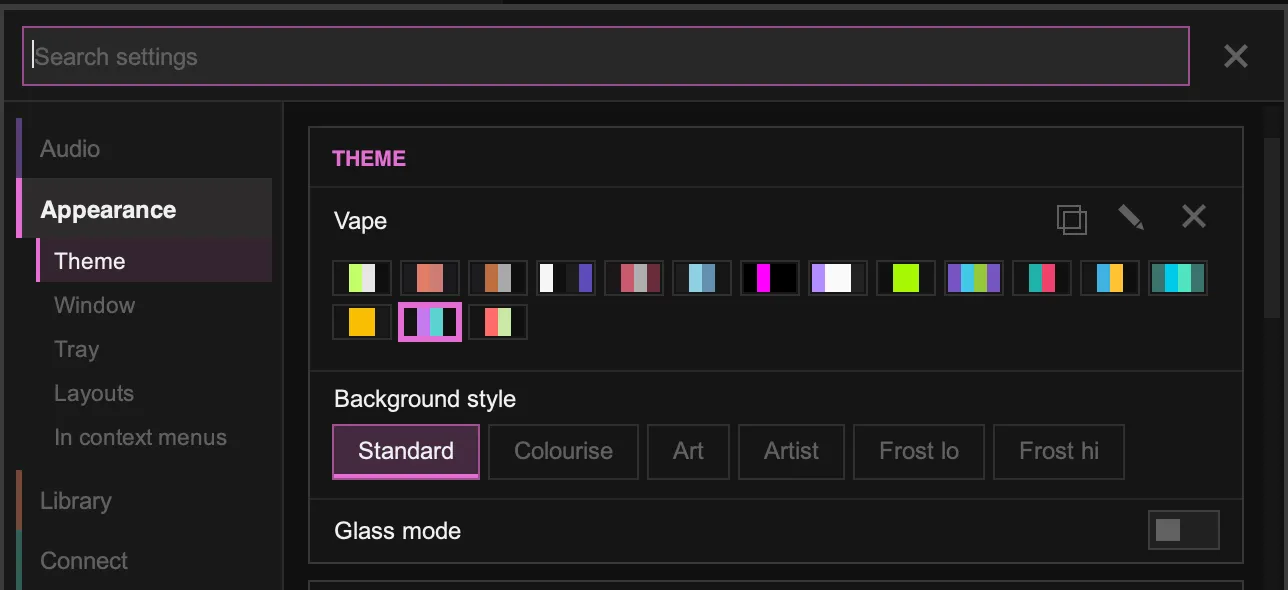
Choose a theme
Section titled “Choose a theme”Click a colour swatch to switch themes. Hover over a swatch to see its name. You can also press Ctrl + ] and Ctrl + [ to cycle through themes.
Background style
Section titled “Background style”Background style changes what’s behind the interface:
| Style | Description |
|---|---|
| Standard | The theme’s own colours |
| Colourise | Tints the theme with colours from the playing album’s art (“auto theme”). Press F3 to toggle it. |
| Art | A blurred copy of the album art behind the interface |
| Artist | A picture of the playing artist behind the interface |
| Frost lo / Frost hi | A frosted-glass look over the album art, with low or high blur |
Glass mode makes the window translucent, so your desktop shows through (on supported desktops). Glass intensity and Darken tracklist fine-tune it.
Make your own theme
Section titled “Make your own theme”Bundled themes can’t be edited directly, so start from a copy:
- Choose the theme you want to start from.
- Click the Duplicate icon next to its name. This creates a copy called “Name Copy”.
- Click the Edit icon to open the theme editor.
- Pick a colour to change and adjust it with the colour picker. Changes show live.
Your themes are saved as .ttheme files in the theme folder in Tauon’s data folder. To delete one of your themes, select it and click the Delete icon.
Install a theme
Section titled “Install a theme”- Open Tauon’s data folder: Settings › System › Files › Open data folder.
- Put the
.tthemefile in thethemefolder. - Restart Tauon, or press
Ctrl+]until the theme appears.
Find themes made by others, or share your own, in the custom themes discussion on GitHub. For the theme file format, see the Theming Guide.