
Tips & Tricks
Create a shuffled playlist
Section titled “Create a shuffled playlist”Right click a playlist tab and choose Generate... > Shuffled Tracks.
To limit the number of tracks in the playlist to 10, right click the new playlist, choose Edit generator and type the code n10 to the end of the line (after a space).
You can then get a new set of shuffled tracks at any time by pressing Regenerate.
Folder results
Section titled “Folder results”You can search for folder names in the global search.
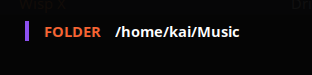
You can right click any result to simply locate the result in the playlist.
Transfer track stats
Section titled “Transfer track stats”If you have some tracks stats (Playtime, rating, loved) on one track, its possible to move these to another track. To do this:
- Select the source track in the tracklist and press Ctrl + c.
- Select the target track in the tracklist and press Ctrl + Shift + p.
You can undo this action by pressing Ctrl + z.
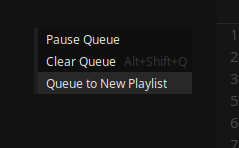
Create playlist from current queue
Section titled “Create playlist from current queue”This option shows when right clicking in the queue area.
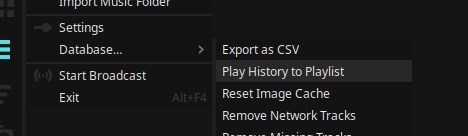
Playlist from previous played tracks
Section titled “Playlist from previous played tracks”This option is under MENU > Database
How big is the image?
Section titled “How big is the image?”Hold Shift while hovering over the album art in the right side panel.
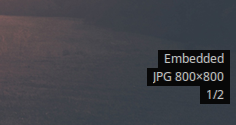
Works for embedded images too!
Mini modes
Section titled “Mini modes”You can find this menu by right clicking in the central empty area in the bottom panel.
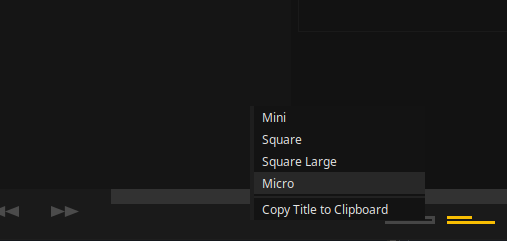
You can also find a “copy title to clipboard” function there.
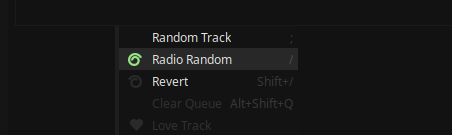
The radio random function
Section titled “The radio random function”It takes to you a random track with a random time!
Widen the right side panel past 1:1 ratio
Section titled “Widen the right side panel past 1:1 ratio”You can do this by tapping Shift while drag resizing the panel to the left.
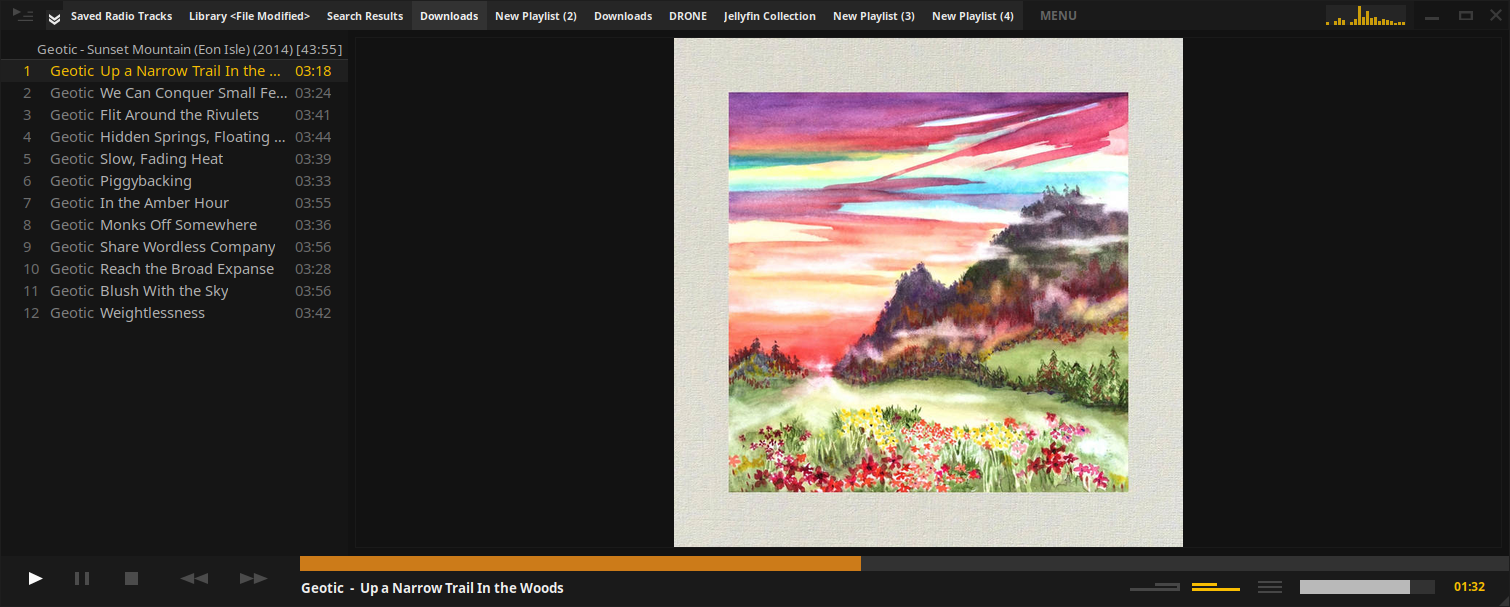
Useful if you have rectangular album and and and to admire it for all its beauty. I can’t find any to show off here though. (Album on show is Sunset Mountain by Geotic)
Add track to front of queue
Section titled “Add track to front of queue”An option for this is hidden in the track menu, reveal by holding Shift

Physically delete a track
Section titled “Physically delete a track”An option for this is hidden in the track menu, reveal by holding Shift

Physically delete a folder
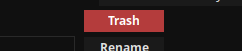
Section titled “Physically delete a folder”Right click track/album, click “Meta” > “Modify Folder”. In that box there is an option to trash the folder. (Or hold Shift to delete)
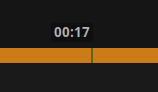
Time cursor
Section titled “Time cursor”You can bring this up by middle mouse clicking on the seek bar.
Fix Japanese Mojibake
Section titled “Fix Japanese Mojibake”In case of mojibake (where displayed characters from Japanese language metadata is garbled), the ideal solution is to re-apply tags in a tag editor, preferably using UTF-8 if the tag format supports it.
As a quick temporary solution, a ‘fix mojibake’ function is available under:
Track Menu > Meta... > Fix Mojibake
This function will attempt to detect the original Japanese encoding and apply changes to all tracks in the folder/album.