

Queue
The queue holds tracks and albums to play before continuing with the playlist.
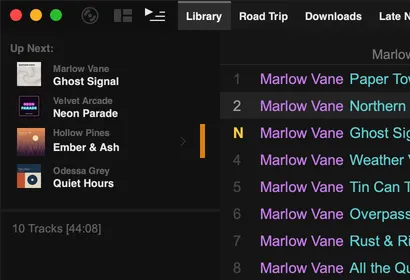
To see the queue, show the left panel. Right-click the side-panel button (the third button in the top-left corner) and choose Queue, or Playlists + Queue to see it under your playlists.
Add to the queue
Section titled “Add to the queue”- Middle-click a track, or select it and press
Alt+Q. - Right-click a track and choose Add to Queue. Hold
Shiftto see ↳ After Current Track, which puts it at the front of the queue. - Right-click an album heading (or an album in the gallery) and choose Add Album to Queue, or Enqueue Album Next to play it right after the current album.
- Drag tracks onto the queue.
- On a touchscreen, swipe sideways on a track.
Queued albums appear as a single entry. Click the expand button on an album to see its tracks and remove individual ones.
Queue menu
Section titled “Queue menu”Right-click an item in the queue for:
| Item | What it does |
|---|---|
| Remove This | Removes the item from the queue |
| Play Now | Plays the item immediately |
| Auto-Stop Here | Stops playback after this item finishes |
| Pause Queue | Keeps the queue but ignores it until you resume |
| Auto Queue | Keeps the queue topped up automatically (see below) |
| Clear Queue | Empties the queue (Alt + Shift + Q) |
| Queue to New Playlist | Makes a playlist from the queue |
Hold Shift to see ↳ Except for This, which clears everything except the item you clicked.
Auto Queue
Section titled “Auto Queue”With Auto Queue on, Tauon keeps about ten upcoming tracks in the queue from the playlist you’re playing. If shuffle is on, it picks random tracks. This lets you see what’s coming up and rearrange or remove tracks before they play.