

Layouts
Tauon has several ready-made layouts and lets you design your own. Click the layout button (the second button in the top-left corner) to choose one:
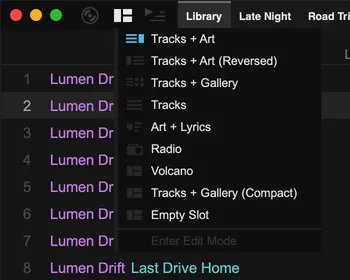
| Layout | What it shows |
|---|---|
| Tracks + Art | The tracklist with album art and track details on the right. This is the default. |
| Tracks + Art (Reversed) | The same, with the art on the left |
| Tracks + Gallery | The tracklist beside an album gallery |
| Tracks | Only the tracklist |
| Art + Lyrics | Large album art beside the lyrics of the playing track |
| Radio | The internet radio view |
Below those are your custom layouts.
To cycle through layouts without the menu, press ] and [, or use the back and forward buttons on your mouse. F5 jumps to Art + Lyrics and back.
You can change the order of the layouts, which also sets the cycling order, under Settings › Appearance › Layouts.
Custom layouts
Section titled “Custom layouts”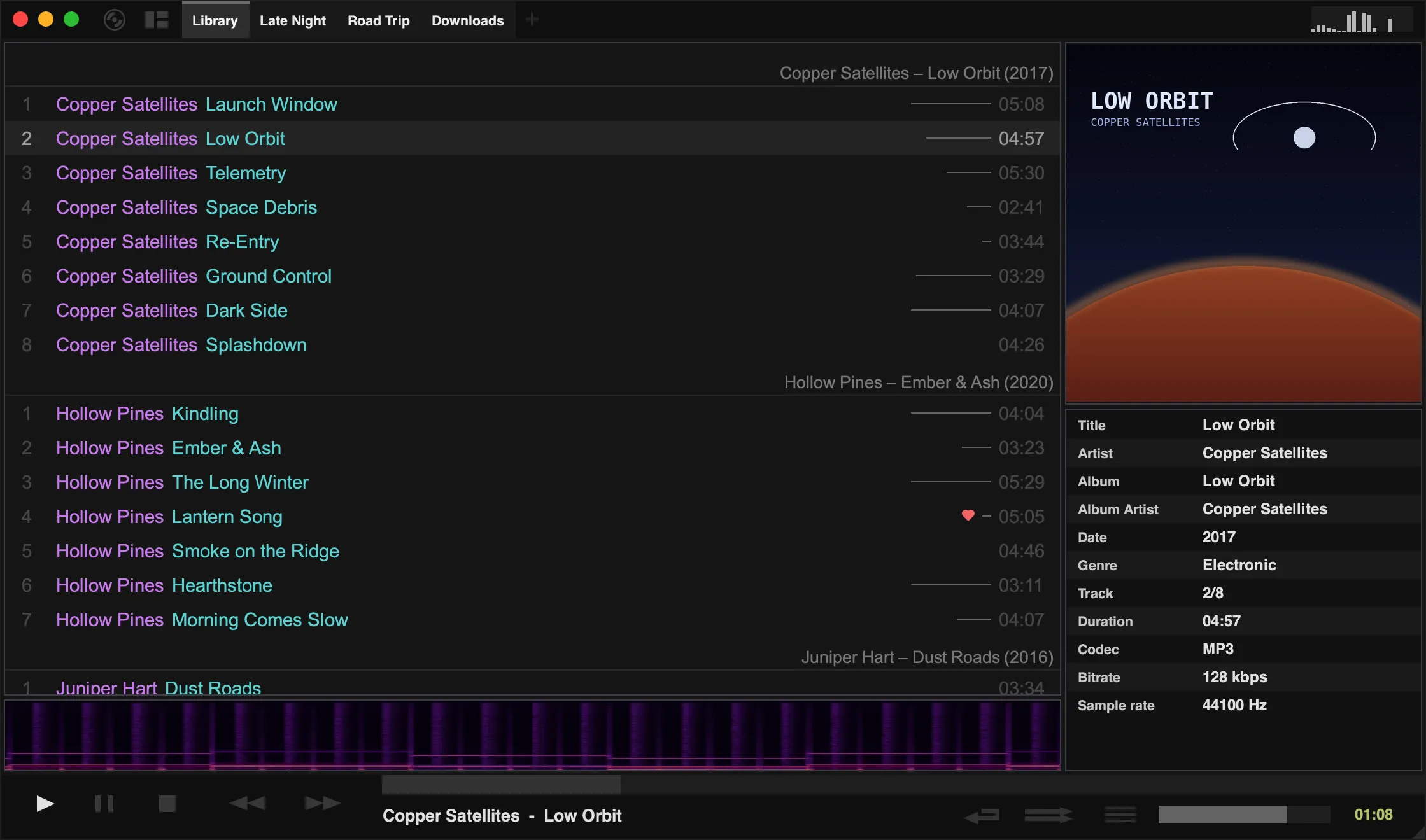
Custom layouts let you arrange the window however you like from building blocks called widgets. Tauon comes with two examples, Volcano and Tracks + Gallery (Compact), plus an empty slot to start from.
Edit a layout
Section titled “Edit a layout”- Choose a custom layout from the layout menu.
- Open the layout menu again and choose Enter Edit Mode.
- Right-click any area of the layout to change it:
- Add Vertical Stack / Add Horizontal Stack splits the area into 2 to 5 parts.
- Add Tabbed Switcher makes the area a set of tabs, each holding its own content.
- Add… places a widget in an empty area. Replace… swaps an existing one.
- Remove and Remove Stack take things away again.
- Layout… has options to lock an area’s size, keep it square, and adjust the gutter, padding and border.
- Drag the borders between areas to resize them.
- Click the layout button or press
Escto leave edit mode.
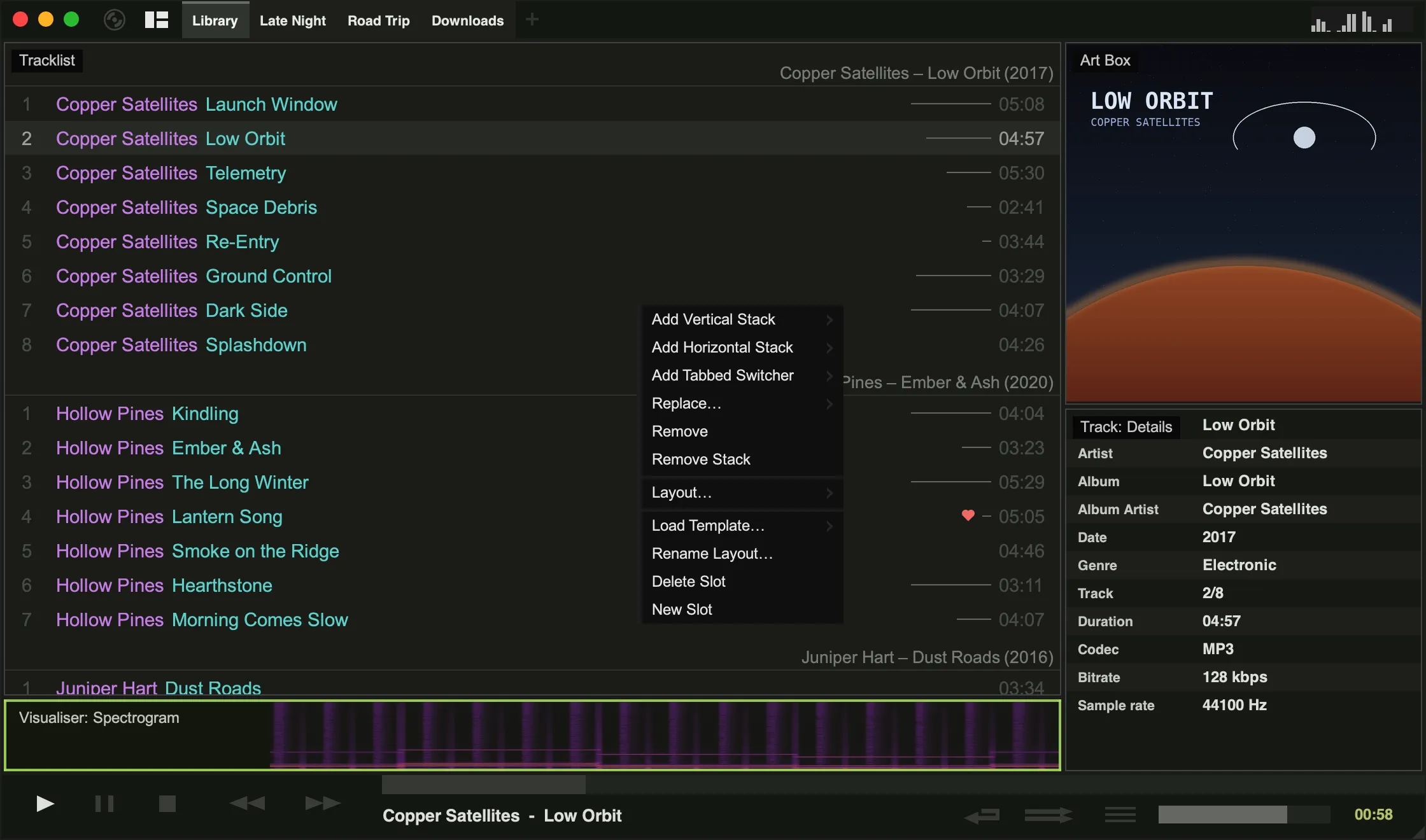
The same right-click menu also has Load Template… to start over from a template, Rename Layout…, and New Slot / Delete Slot to manage your layouts.
Widgets
Section titled “Widgets”| Group | Widgets |
|---|---|
| Music | Tracklist, Gallery: Classic, Gallery: Compact, Albumflow, Art Box, Lyrics Box, Artist Info |
| Track info | Track: Titles, Track: Titles (Centred), Track: Details |
| Side panels | Playlist List, Folder Navigator, Artist List, Queue |
| Visualisers | Visualiser: Milkdrop, Visualiser: Bars, Visualiser: Spectrogram |
| Panels | Header Bar, Playback Panel, Playback panel: Feux |
Most widgets can only be used once per layout. Widgets that are already in use are greyed out in the Add… menu.
Many widgets have their own right-click menu. For example, right-click the compact gallery to change the number of albums per row, or right-click Albumflow to choose how covers are displayed.
Custom layouts are saved in custom_layouts.json in Tauon’s data folder.