

Playlist Folders
Playlist folders let you group playlists in the left panel’s playlist list. Folders can contain other folders, up to three levels deep.
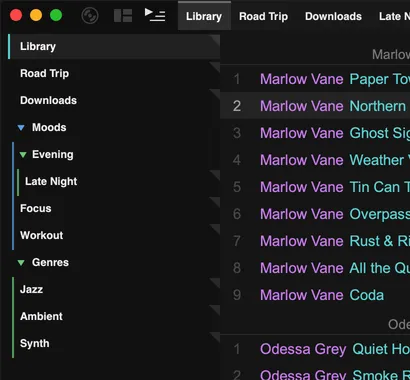
To see your playlists and folders, show the left panel. Right-click the side-panel button (the third button in the top-left corner) and choose Playlists + Queue.
Create a folder
Section titled “Create a folder”Right-click empty space in the playlist list and choose New Folder. Type a name and press Enter.
To put playlists in a folder, drag them onto it. You can also drag folders into other folders. When you drag over a closed folder and hold for a moment, it opens.
Folder options
Section titled “Folder options”Right-click a folder for:
- Rename
- Pin to Top Panel: show the folder as a tab in the top panel. Clicking the tab drops down a list of its playlists.
- Colour…: choose the folder’s colour
- New Subfolder and New Playlist: create them inside this folder
- Delete Folder: removes the folder but keeps its playlists. They move up to where the folder was.
Click a folder to open or close it.
To take a playlist out of a folder, right-click its tab or entry and choose Remove from Folder, or drag it out.
Pinning
Section titled “Pinning”Every playlist can be pinned or unpinned. Pinned playlists have their own tab in the top panel. Unpinned playlists only appear in the left panel. Right-click a tab or a playlist entry and choose Pin or Unpin.
Pinning a folder instead keeps the top panel tidy: one tab gives you all the playlists inside it.